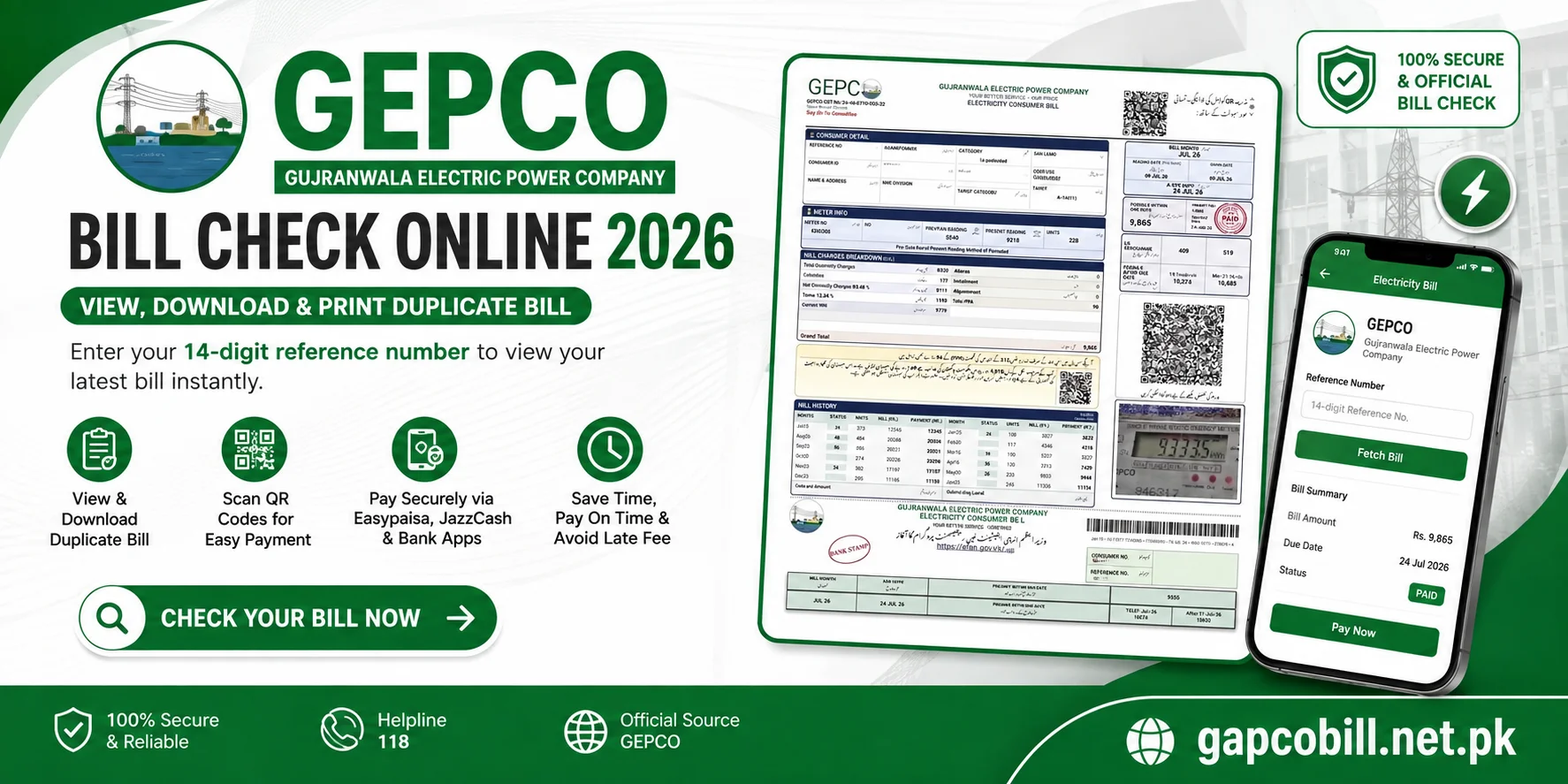
If you live in Gujranwala, Sialkot, Gujrat, or their nearby areas and your electricity bill still hasn't arrived at your home, then there's absolutely no need to worry. Now you can check your Gepco Bill online from home in just 2 minutes. You only need your 14-digit reference number or 10-digit consumer ID, which you must enter into the bill checker toolbox provided here, then click the search button to view your latest bill. In addition, you can now scan the QR codes provided by the government and GEPCO on your bills to check your bill, and you can also pay online via EasyPaisa/JazzCash or by card. We have created this easy guide for you so that you can view your duplicate bill without any difficulty, download it, and pay your bill on time to avoid late payment surcharges.
GEPCO Bill Information
If you are going to check your GAPCO bill online, you should have a basic understanding of this service and the company so that any confusion you have is cleared up, and you can also see which divisions it serves. Below, everything is provided in detail so that you can view all the necessary information.
| Feature/ Detail | Information |
|---|---|
| Company Name | Gujranwala Electric Power Company (GEPCO) |
| Covered Regions | Gujranwala, Sialkot, Gujrat, Hafizabad, Narowal, Mandi Bahauddin, and Wazirabad |
| Required Numbers | 14-Digit Reference Number or 10-Digit Consumer ID |
| Bill Availability | A new bill is uploaded between the 15th and 20th of every month |
| Download / Print | It can be downloaded and printed completely free in PDF format |
| Payment Options | Available via JazzCash, Easypaisa, bank apps, ATMs, and over-the-counter at any commercial bank branch. |
Check Your GEPCO Bill Online: Complete Guide
If you want to check your GEPCO electricity bill online but don't know how, don't worry. Here are two methods. You can follow either method below step by step according to your convenience and immediately view your latest bill. hn.
Using the 14-Digit Reference Number
The most common and easiest way to check a GEPCO bill, which most people use, is the reference number:
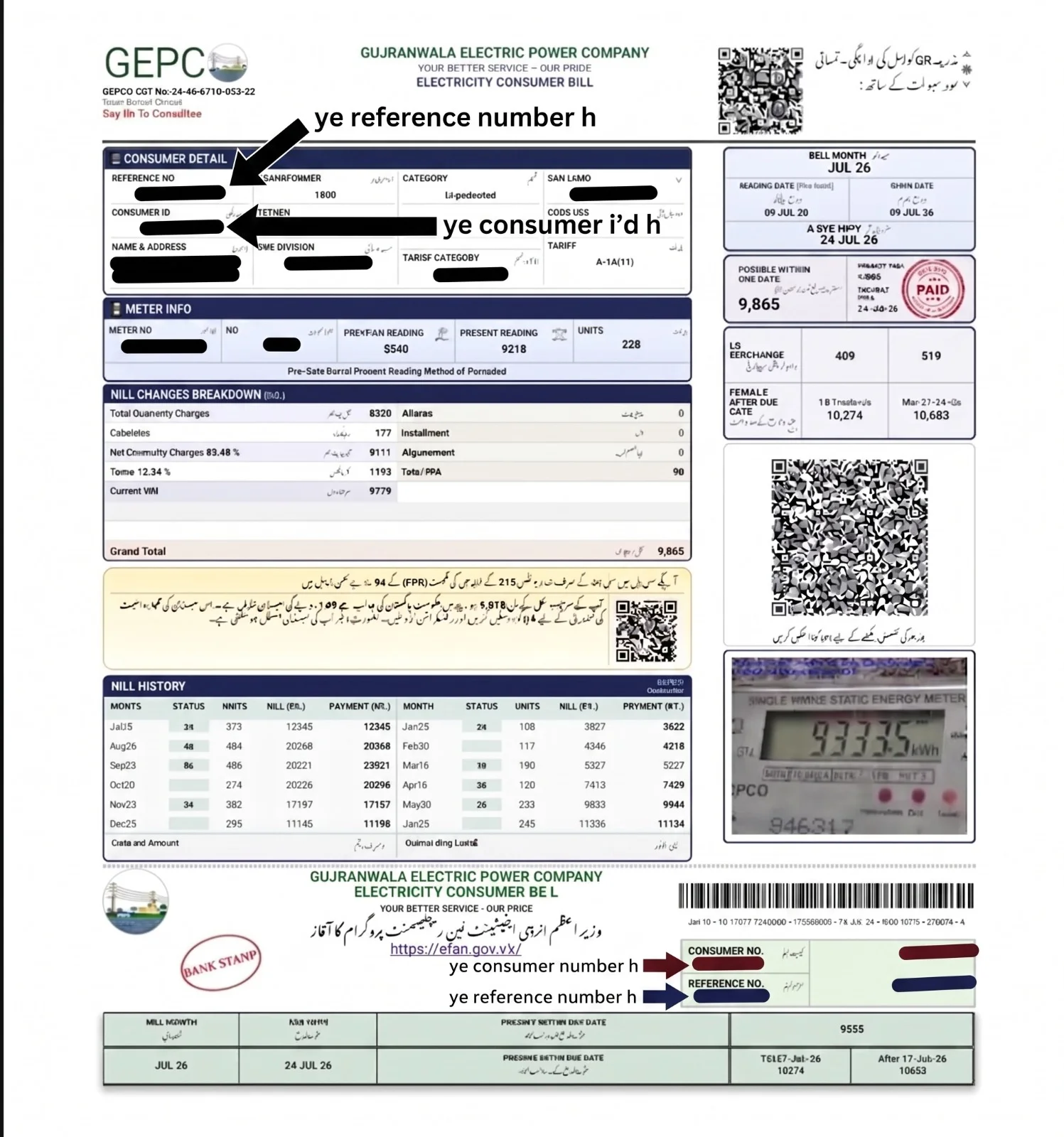
14 Digit Reference Number: This is the first number in the consumer details box at the top left of your bill. You just need to copy it.
You can identify it by the fact that it consists of a full 14 digits.
Then you need to enter this 14-digit reference number into the toolbox provided above.
After that, select your area: if you live in a city, select “City,” and if you live in a village, select “Village.”
Finally, click the “Check Now” button below, and your GEPCO duplicate bill will immediately appear on the screen.
Using the 10-Digit Consumer ID
If you don't have the reference number, you can also check the bill with the consumer ID, and instructions on how to find it are provided below:
10 Digit Consumer ID: This is also written on your bill in the same box with the consumer details, just below the reference number.
You can identify it by the fact that it consists of only 10 digits.
You just need to copy this 10-digit consumer ID and enter it into the bill checker box provided here.
Then, as soon as you press the Search button, your current month's bill will be displayed.
GAPCO Bill QR Codes and Their Uses
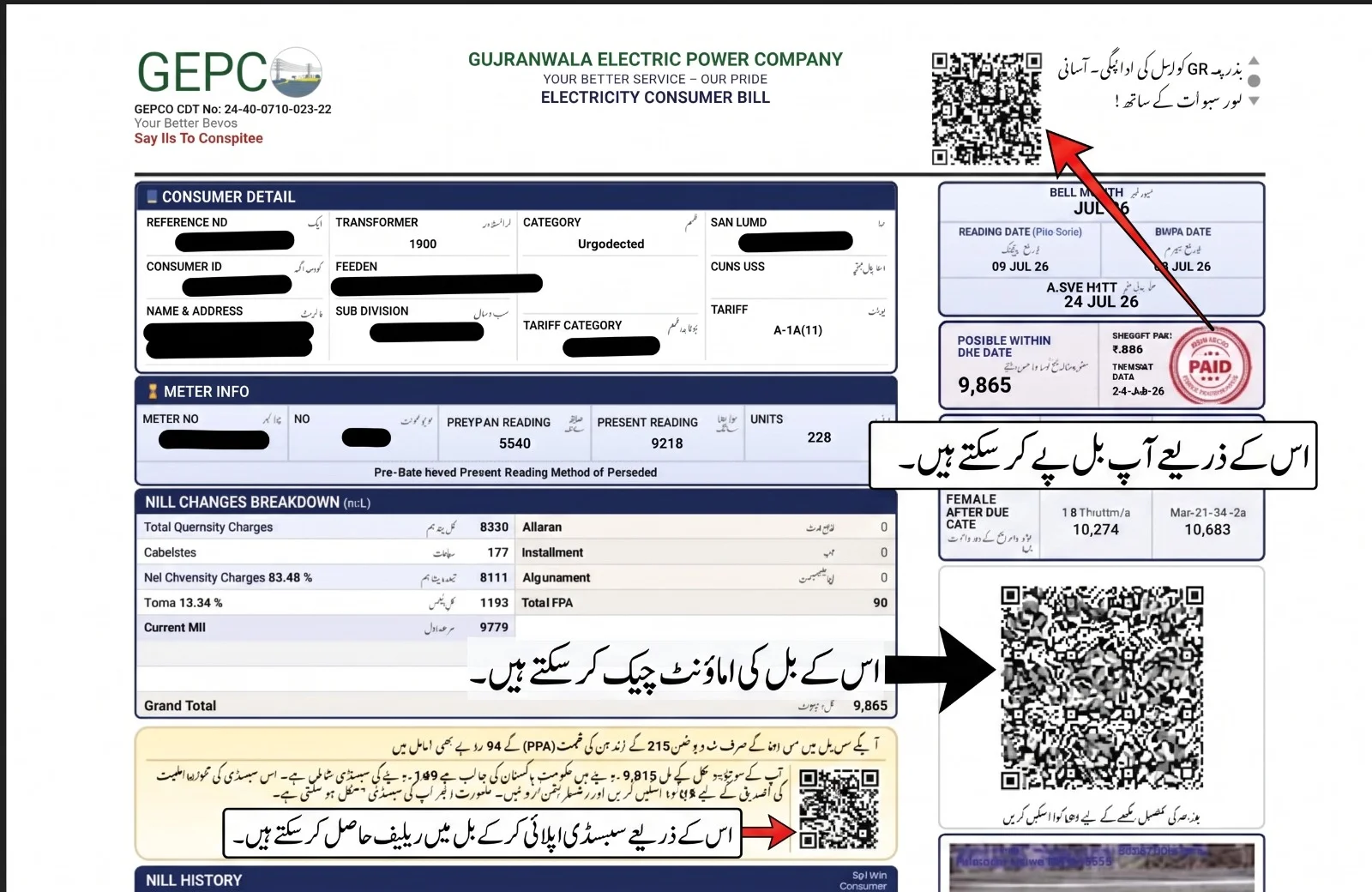
The government has completely changed the layout of GEPCO's digital bills as of May 2026 and, for everyone's convenience, introduced three new QR codes so that all consumers can access every type of facility. Each of these serves a different purpose. Through them, you can check your bill in just a few seconds and apply for relief by applying for subsidies. Below, the steps for using them are explained in detail. You can explore them.
Top Right QR Code – Easy Bill Payment
This first QR code is provided at the very top right of the new bill, allowing you to pay the bill without entering a reference number:
Step 1: Open Mobile App: Open the Easypaisa, JazzCash, or your banking app on your mobile.
Step 2: Select QR Scanner: Click on the QR Scanner option within the app.
Step 3: Scan Bill: Point your mobile camera at the QR code in the top right corner of the bill.
Step 4: Confirm Payment: The app will automatically fetch your bill amount and details. Just enter your PIN and confirm the payment.
Large QR Code in the Middle Right – Duplicate Bill Verification
The large QR code in the middle right of the bill is for online verification and downloading the bill.
Step 1: Use Your Mobile Camera: Open your smartphone's default camera or any QR code scanner app.
Step 2: Scan the Center QR: Point your camera at this large QR code and scan it.
Step 3: Open Official Link: An official link will appear on the screen; click on it.
Step 4: View Digital Bill: You will be taken directly to GEPCO's portal where you can verify and download your complete duplicate GEPCO bill.
Bottom Box QR Code – Government Subsidy Verification
The government has recently launched an excellent subsidy relief program. It is only for those who have never used more than 200 units. Under this, taxes are collected from those who consistently use over 200 units, and the relief is given to consumers whose bills meet the government's criteria. Go over the government-set unit limit. If you are one of them, you are definitely 100% eligible for this scheme. You just need to follow the method provided here to apply.
Focus on the Box: This is located in the small box just below the bill charges breakdown box on your bills.
Use Google Camera: Open Google Lens on your phone and scan this QR code. A link will appear on the screen, and you simply click it.
Check Relief Status: As soon as you click, you will be taken directly to the official website. There you will see a form to fill out and submit.
After that, for every monthly bill you receive, you will be given relief, provided you do not exceed the allotted units each time. If you accidentally use 2001 units, you will become ineligible for this program for the next six months.
Download or Print Your GEPCO Duplicate Bill
If you want to save your GAPCO bill to your mobile or pc, or print it to deposit it at the bank, you can get it immediately by following these simple steps, and any bank, institution, or GEPCO officer will treat it as completely genuine, because the bill is yours and you're just making a copy of it.
Step 1: Open the Bill Online: First, enter your 14-digit reference number in the tool above to open your bill on the screen.
Step 2: Find the Print or Download Button: When your duplicate bill opens, you'll see a “Print Bill” or “Download PDF” option at the top or bottom of the page. Click on it.
Step 3: Save as PDF (Mobile Users): If you're using a mobile device, go to the print preview screen, click “Save as PDF,” and save the file to your phone's memory. Whenever you want to view it, open the Files app and go to the Documents folder to see it.
Step 4: Print a Hard Copy (Computer Users): If you're on a laptop or computer, simply press Ctrl + P and save the file under any name, such as “bill copy.”
Please note: This duplicate GAPCO bill is 100% legal and is accepted at all commercial banks, post offices (daak khana), and retail shops in Pakistan just like the original bill.
GEPCO Bill Online Payment Options
Now you don't have to stand in long lines to deposit your bill. You can make payments from home using these two methods.
How to Pay GEPCO Bill via Mobile Wallets (EasyPaisa & JazzCash)
If you have a mobile wallet account, you can make the payment using the steps below.
Download and Install the App
If you don't have the app on your mobile device, first go to the Google Play Store for Android users and the Apple App Store for iPhone users.
In the search bar, type Easypaisa or JazzCash and click the ‘Install’ button to download the app.
Log In to Your Account
Then open the app and enter your registered mobile number.
Log in to your account by entering your 5-digit or 4-digit Secret PIN code or using fingerprint biometric verification. Make sure you have enough funds in your account to cover the bill amount.
Select Bill Payment Option
Now, on the app's dashboard, you will see a “Bill Payment” or “Pay Bills” icon. Click on it.
On the next screen, select the “Electricity” option from the available choices.
Select GEPCO and Enter Reference Number
You will then see a list of all electricity companies in Pakistan. Click on “GEPCO” from this list.
Now, enter your 14-digit reference number in the box on the screen without any spaces and click ‘Next’.
Verify and Pay
The app will automatically show your current month's bill amount and due date on the screen.
Confirm that the amount matches your last physical bill, then click “Pay Now.” Your bill will be processed immediately, and a payment receipt will appear on the screen, which you should save.
How to Pay GEPCO Bill via Internet Banking Apps
If you have an account with a commercial bank (HBL, ABL, UBL, Alfalah, etc.), you can also pay your GAPCO bill through their official app.
Open and Log in to the Bank App
Open your bank's official mobile app (such as myABL, HBL Mobile, Meezan Mobile Banking).
Open your account by entering your username and password or by using biometric login.
Navigate to Utility Bills
Go to the app's main menu or dashboard, find the “Bill Management,” “Payments,” or “Utility Bills” option, and click on it.
Click on “Add New Bill” or “Pay New Bill” and select “Electricity” for the company type.
Enter Consumer Details
Then select “GEPCO” from the dropdown list.
After that, enter the 14-digit reference number or 10-digit consumer ID from your bill and click ‘Validate’.
OTP Verification and Payment
The bank will show the bill details on your phone screen. You need to verify the details first and then click ‘Pay’.
After that, an OTP code will be sent to your registered mobile number and email; enter it to confirm the transaction. The money will be automatically deducted from your bank account, and the bill will be paid.
Traditional and Offline Payment Methods
If you don't want to use mobile apps, you can also pay your bill using these common methods:
ATM Payment (Card Payments)
Go to your nearest bank ATM and insert your Debit/Credit card.
After entering your 4-digit PIN code, select the “Bill Payments” option.
Select GEPCO, enter the reference number, transfer the balance from your account, and take the transaction slip.
Over the Counter (Cash Payments)
Bring a printout of the GEPCO duplicate bill generated from our website.
Go to any commercial bank branch, a Pakistan Post Office (Daak Khana), or a nearby Easypaisa/JazzCash shop or Omni retailer, pay the bill in cash, and keep the signed/stamped copy for your records. This way, if any checking officer comes, you can show it to them and prove that your bill has been paid.
Confirm Your GEPCO Payment Status: Paid or Unpaid
After paying a GEPCO bill through the online system, every consumer has the same concern has their bill been paid, or is the status still unpaid? If you also want to check this, you can confirm it using all of the methods provided below.
Online Status Check: If you have paid your bill and want to check its paid status, first enter your 14-digit reference number in the box above to open the GEPCO bill check. You will immediately see a “PAID” stamp on the right side. In this way, you can verify your payment by checking your GEPCO Gujranwala online bill from home.
Payment Date and Amount: Along with the stamp, the exact date of your payment and the amount paid are also written.
Previous Payment Record: If you want to view your past records, there is a “BILL HISTORY” box located in the lower middle left of the bill. There you'll find the complete record of previous months, how many units you used in each month, and on which date you paid the bill. This way, your Gepco online bill checking is completed in one place.
Understanding Your GEPCO Bill
It's very important to understand your electricity bill, so you know what the Gujranwala Electric Power Company is charging you for. Be sure to check these important items on your GEPCO bill duplicate so you know exactly what details have been provided to you, and if you ever need any information, you can find it immediately and resolve your issue:
Reference / Consumer ID
Reference / Consumer ID: This is your electricity identity. If you are checking your GEPCO online bill via the consumer ID, it is a 10-digit number, whereas the reference number is 14 digits long. You can use either one to check your bill.
Meter Reading
Meter Reading: In this section, there are two items. Previous Reading (last month's reading) and Present Reading (this month's current reading). The difference between the two is the number of units you have consumed.
Units & Tariff
Units & Tariff: The amount of electricity you used during the entire month is clearly written in the “Units” column. Your connection, residential or commercial, is determined by the “Tariff.”
Taxes and Charges
Taxes and Charges: In addition to the basic price, FPA (Fuel Price Adjustment) and government taxes (GST, Income Tax) are included separately, which increase the total bill amount. Therefore, always check your GEPCO bill online to verify these charges.
GEPCO Bill Due Date and Late Payment Rules
Due Date (Last Date): Every month, when you check the new GEPCO 2026 bill online, the payment deadline is clearly stated. Try to pay before then so you don't incur a penalty.
Late Payment Surcharge: If you pay your bill after the due date, you will have to pay a penalty (surcharge). This extra amount is also clearly printed on the bill under “Payable After Due Date.”
Possible Disconnection: If you fail to pay your GAPCO bill for two or three consecutive months, the company has the right to disconnect your meter. Reconnection carries hefty fees, so as a responsible customer, pay your bill on time.
Fix Common GEPCO Bill Checking Problems
Often when consumers check their GEPCO Online Bill, they get a “bill not found” message. If this happens to you, follow the tips and steps provided, and this issue will no longer occur.
Bill Not Found Error
Bill Not Found Error: This occurs when you make a mistake while entering the 14-digit GEPCO online bill. Double-check that all 14 digits are correct and that there are no spaces or dashes (-) in them. Additionally, if you enter one digit too many or too few, you will keep getting this error, so always enter the numbers carefully.
Can I Check by CNIC?
Can I Check by CNIC? Many people ask if they can check their GEPCO online bill using their CNIC. The clear answer is absolutely not, because this is not allowed by the official authorities, and there is no such option on the main website.
Server Temporary Issue
Server Temporary Issue: When many people visit the official GEPCO or PITC website, www.gepco.com.pk, to check their bills online at the same time and traffic gets high, the server goes down. In such cases, try again in 5–10 minutes on our site to check your GEPCO online bill, and the page will open.
GEPCO New Connection and Complaint Information
If you want to get a new meter installed by the Gujranwala Electric Power Company (GEPCO) or file an electricity-related complaint, this process has now become very easy. The company has launched online portals and direct helpline numbers for consumers' convenience. With these, you can apply for a new connection from home without any office visits and immediately register complaints about load shedding or meter malfunctions.
New Connection Application
If you want to get a new Gujranwala Electric meter installed, you no longer need to go to the office. You can apply online on the ENC (Electricity New Connection) portal and upload the required documents to have a new meter installed.
Bill or Electricity Complaint
If your GEPCO online bill is incorrect, there is an electricity problem, or someone in your area is stealing electricity, you can file a complaint using the following methods.
Helpline Number 118: You can dial 118 directly from any mobile or landline to speak with a GEPCO helpline agent and register any complaint you wish to file.
SMS Service 8118: You can send an SMS from your mobile phone to GEPCO's official short code 8118, detailing your issue. They will resolve your problem immediately.
FAQs About Gepco Bill Online Check
Q1 What is the easiest way to check a GEPCO bill online?
Q2 Where can I find the new GEPCO 2026 rates for online bill checking?
Q3 Can we view the bill without a reference number?
Q4 Is it possible to check a GEPCO bill by CNIC or name?
Q5 What does PITC mean in a GEPCO bill?
Q6 Is there an app for checking GEPCO bills online?
Final Words
Checking your GEPCO bill online is now much easier and more digital than before. If your home bill is lost or doesn't arrive on time, you can download and print your GAPCO duplicate bill from home without any hassle using your reference number or consumer ID. Additionally, you can pay your bill online via JazzCash or EasyPaisa. Always pay your bill on time to avoid late surcharges and disconnection.
Finally, we want to make it clear that we are not an official GEPCO website, but all the information provided on our site is completely real and verified by authorized sources. Our bill checker tool is 100% genuine and secure. As soon as you enter your 14-digit reference number and run the search, you will connect directly to the main server, and your latest digital bill will open on the screen. If you are facing any issues checking your bill online or have any questions, you can ask us in the comment box below, and we will provide you with full assistance.